Backlog
Export the entire backlog view as one document: the active sprint, future sprints, and the unassigned backlog — ready for planning sessions.
How to export the backlog
- Open the board's backlog.
- Open Exportelier and choose the backlog context.
- Pick a template and format.
- Select Export.
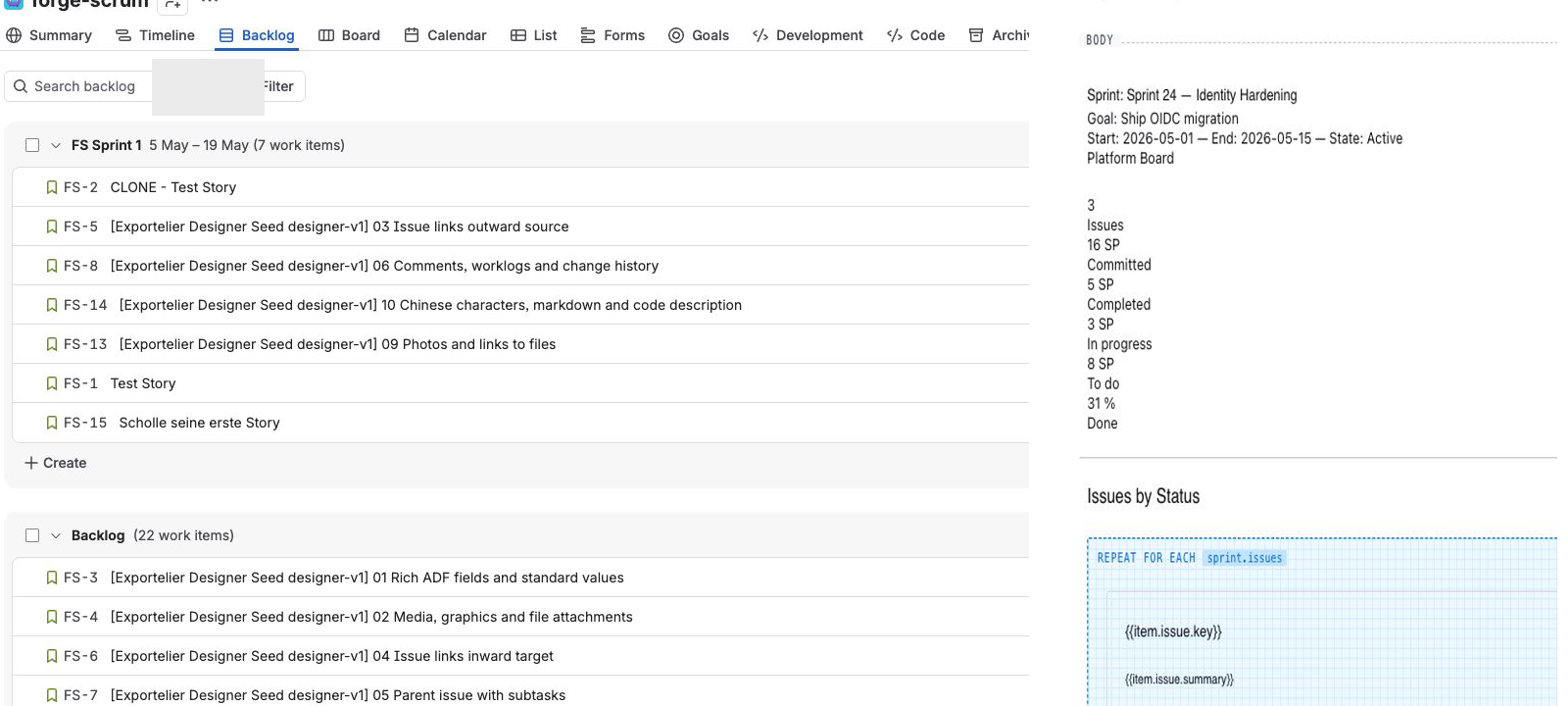 The real Jira backlog beside a multi-issue report layout in Exportelier.
What a backlog export contains
- The active sprint and its issues.
- Future sprints and their planned issues.
- The unassigned backlog.
Tips
- Use grouping so each sprint and the backlog appear as clear sections — see Repeaters & grouping.
- Pair with a planning agenda template for sprint-planning meetings.