Quickstart: your first export
This is the fastest path from zero to a finished document. If you only do one thing with Exportelier, do this.
Before you start
- A Jira Cloud site. Exportelier is a Cloud-only Forge app.
- Permission to install apps (site admin) for the one-time install. After that, any user can export issues they can already see.
1. Install Exportelier
Open Apps → Explore more apps in Jira, search for Exportelier, and install it. It runs entirely on Atlassian Forge, so there is no separate account to create.
 This panel deliberately marks the unavailable external Marketplace capture; no listing, price or checkout state is simulated.
2. Open an issue and export
- Open any Jira issue.
- Open the Exportelier action from the issue actions.
- Choose PDF and the bundled default template.
- Select Export.
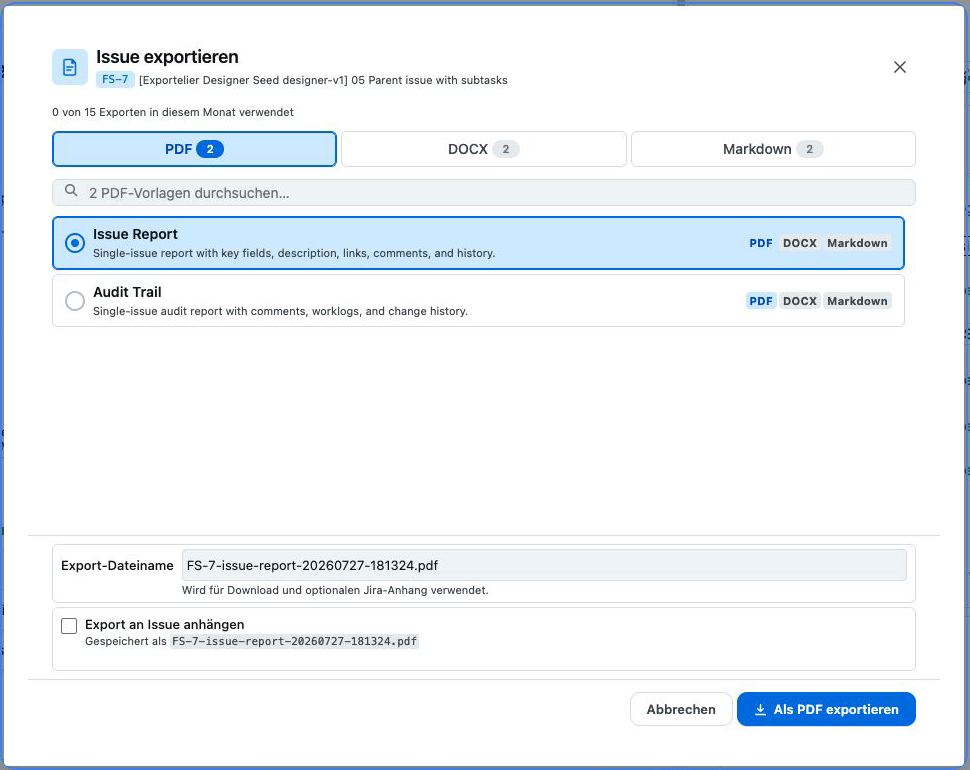 The export dialog showing format options (PDF / Word / Markdown) and the template picker.
The document is rendered on Forge and downloaded to your browser. Nothing is stored on a third-party server.
3. What to try next
- Export to Word or Markdown from the same dialog — see Output formats.
- Open the Template designer to build your own layout.
- Export more than one issue at once with Bulk & JQL.
Free includes all six export contexts, PDF, Word and Markdown, and the complete visual designer. It allows 15 successful exports per UTC calendar month and Jira site, three custom templates, one uploaded custom-font family and audit-log viewing/export for the latest 30 days. Older entries are not deleted by that Free window and may reappear after an upgrade if normal retention has not purged them. See Plans & features.