Bulk & JQL
Export many issues at once — from a quick search, a saved filter, or a raw JQL query — into a single combined document.
Starting a bulk export
- Open Exportelier from the issue navigator, a saved filter, or the bulk export entry point.
- Provide the scope: a saved filter or a JQL query.
- Choose a template and format.
- Select Export.
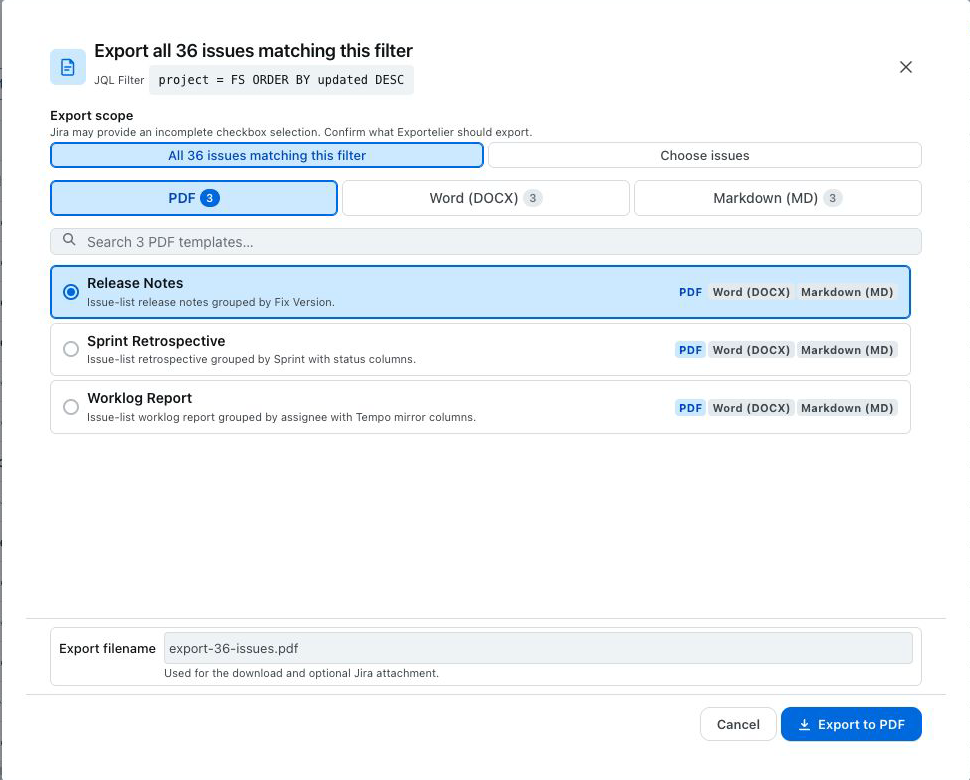 The bulk export dialog with a JQL field, result count, and template/format pickers.
Combined output
All matching issues are rendered into one document using the chosen template, in the order returned by your query. Use the template's grouping and repeater features to structure the result — see Repeaters & grouping.
Large result sets and background jobs
When a result set is large, the export automatically switches to a background job so your browser is not blocked. You can track the job and download the result when it finishes.
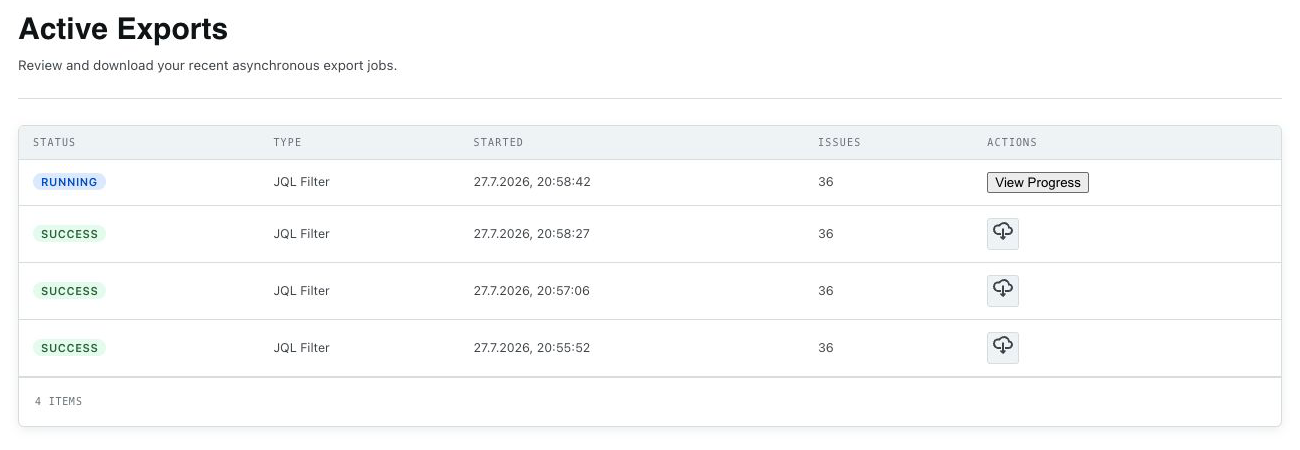 The background job status view showing progress and a download action.
See Large exports & background jobs for thresholds and tips.
JQL tips
For useful query patterns and performance notes, see JQL tips.