Word Template Mode
Word Template Mode lets you start from your own branded .docx and have Exportelier fill it with Jira data — preserving your headers, footers and styles. It is the migration-friendly path for teams that already have corporate Word templates.
How it works
- Prepare a
.docxwith supported tokens where Jira data should appear. - Upload it to Exportelier as a Word template.
- Check the tokens against the searchable Available fields reference.
- Export — Exportelier returns your document, filled in.
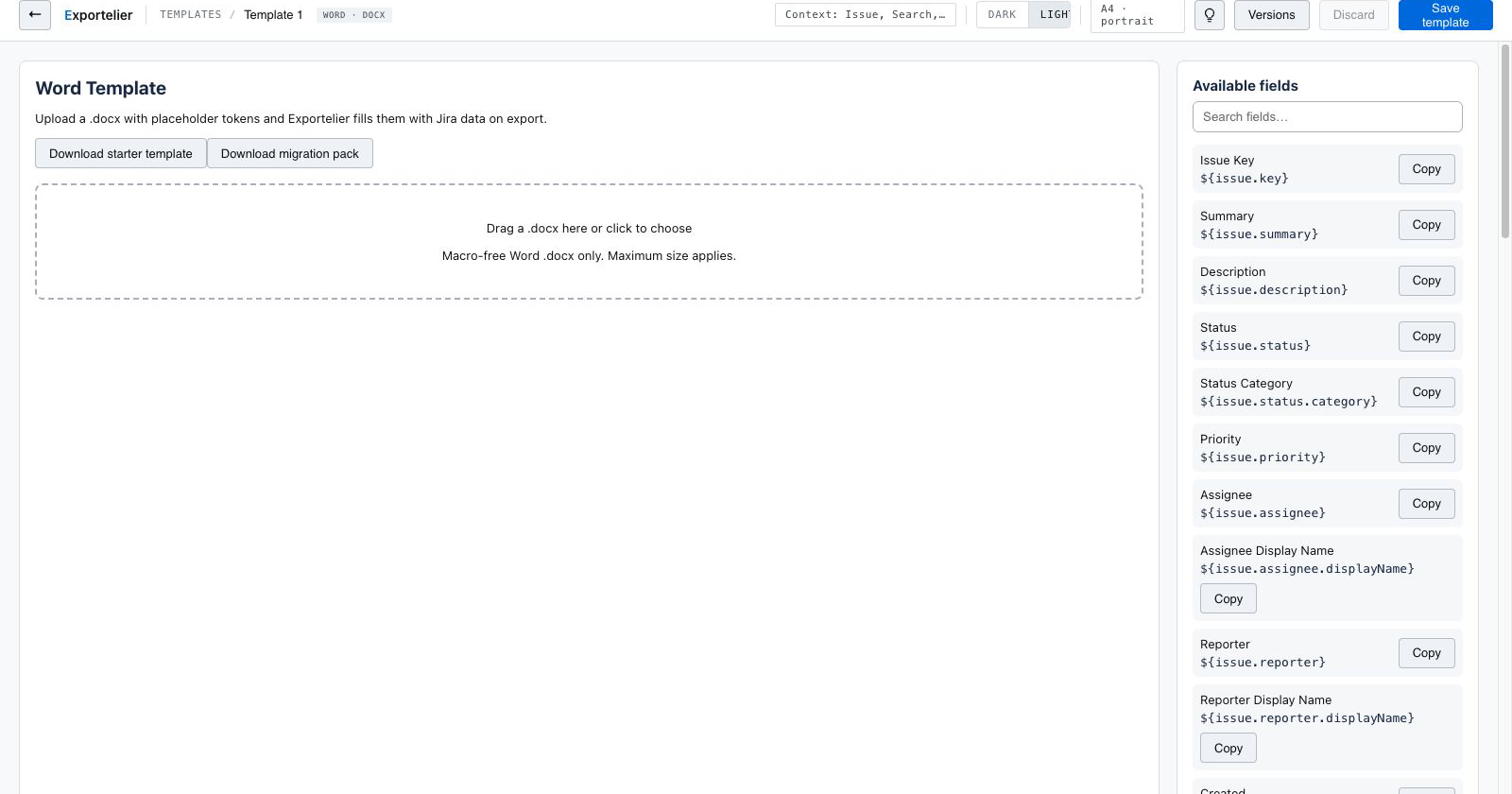 The real Word Template Mode upload screen with its DOCX dropzone and searchable Jira token reference.
What is preserved
Your document's headers, footers, styles, fonts and layout are kept intact. Exportelier only fills the placeholders; it does not restyle your document.
Placeholders and fields
Insert supported tokens such as ${issue.key} directly in the .docx. The Available fields panel lets you search for Jira values and copy the exact token syntax.
The searchable field-token reference beside the DOCX upload area.
Use Word Template Mode when you must match an existing corporate document exactly. Use a designer template exported to Word when you want Exportelier to own the layout.